
A coffee store website for your roast collection.
Give customers a place to choose the origin, bag size, and grind before the order reaches your team.
- Weight and grind variants
- Origin and coffee profile descriptions
- Quantity-based wholesale prices

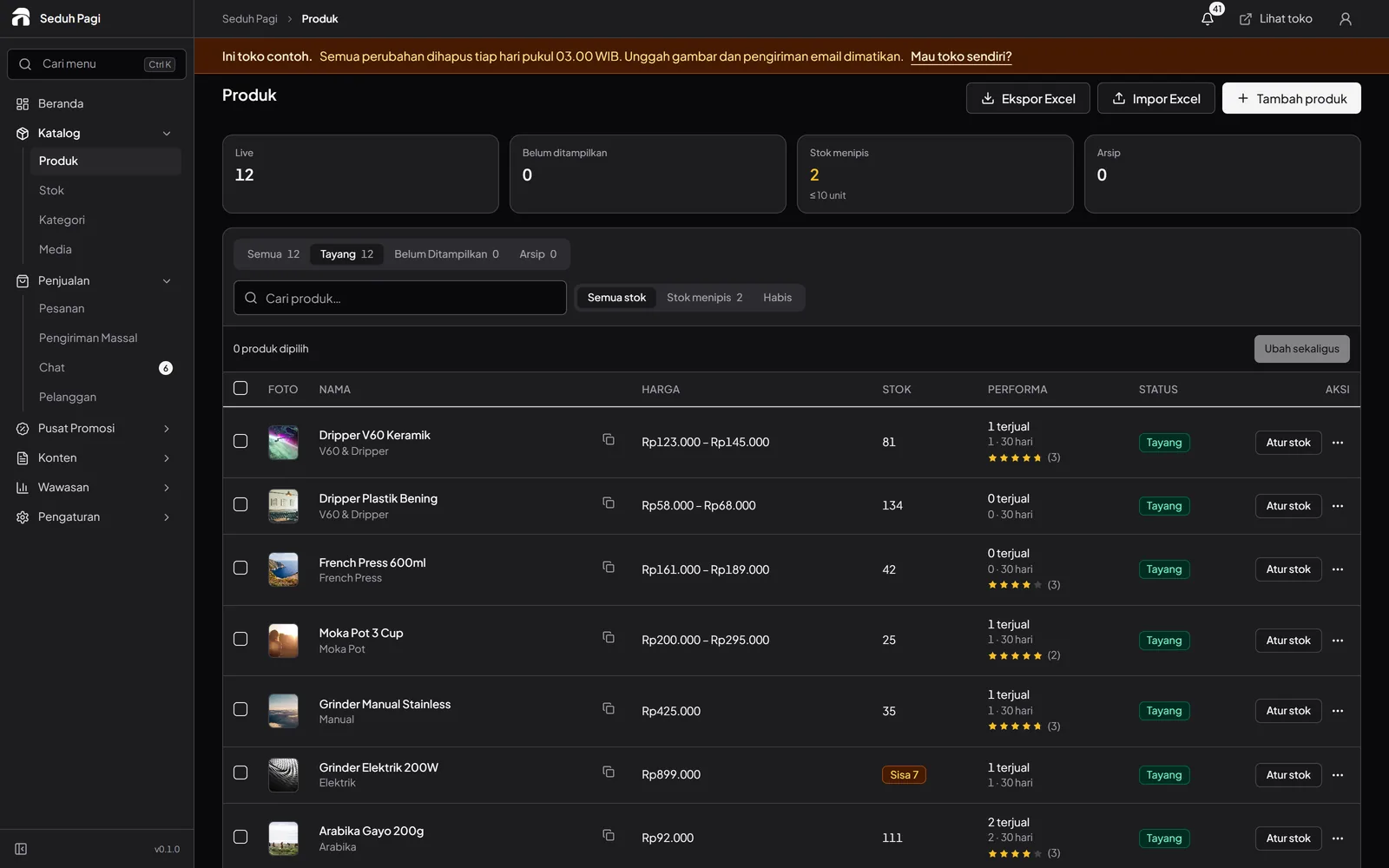
Offer coffee in the right format.
Create a product for a coffee or blend, then separate bag sizes and grind choices.
For example, coffee in 250-gram and 1-kilogram bags, each offered as whole beans or ground, needs four variants. Use option names customers understand and SKUs your team can check quickly.
- Whole-bean and grind choices
- A price and SKU for each variant
- Parcel weight for shipping calculations
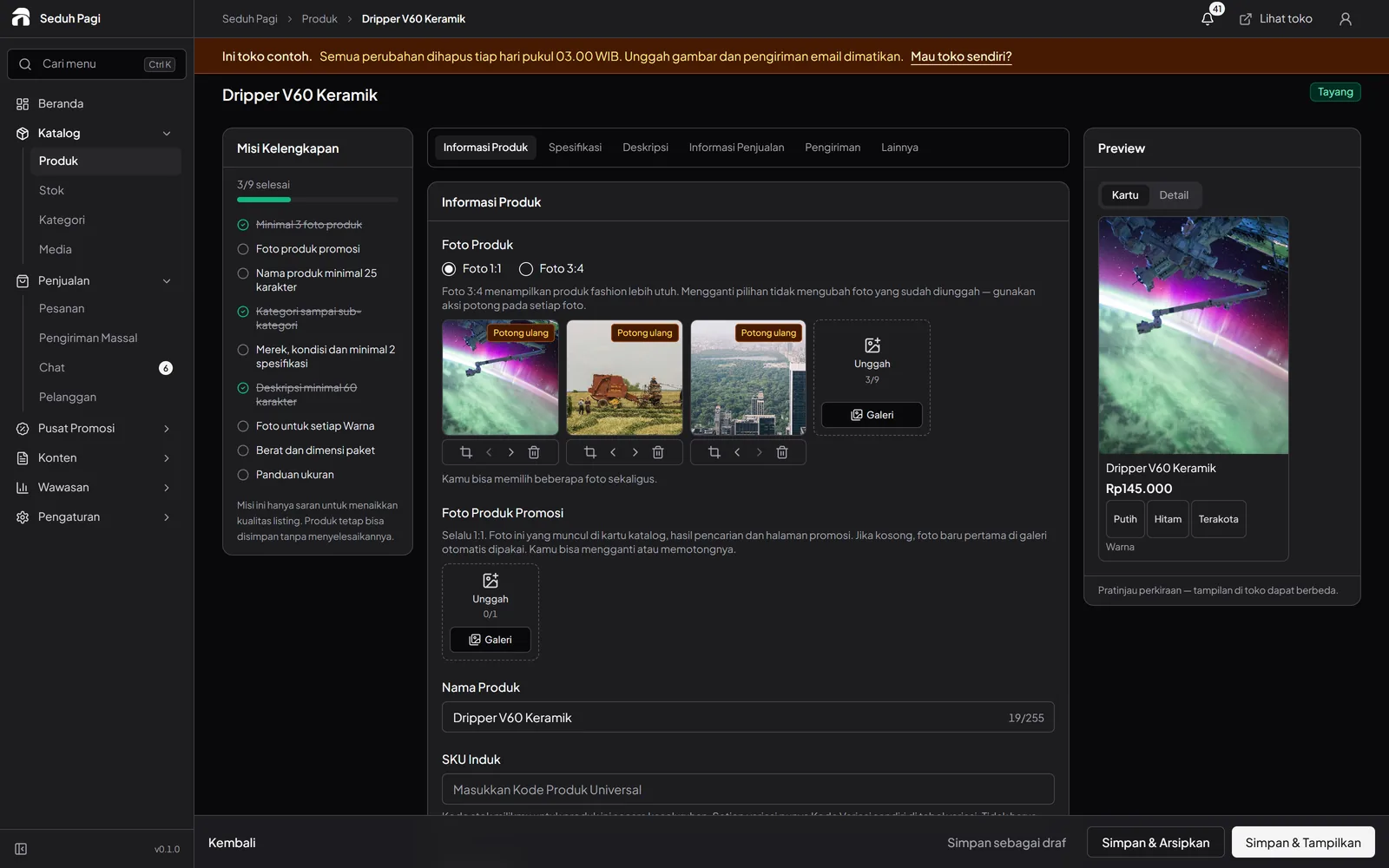
Explain what is inside the bag.
Use descriptions and attributes to present the information you have about each coffee.
Origin, processing method, roast profile, and brewing suggestions can go in descriptions or attributes. Separate information about the coffee from choices that change its price. Shoppers should still see the selected bag size before checkout.
- Origin and process in product details
- Tasting notes and brewing suggestions
- Packaging and product photos
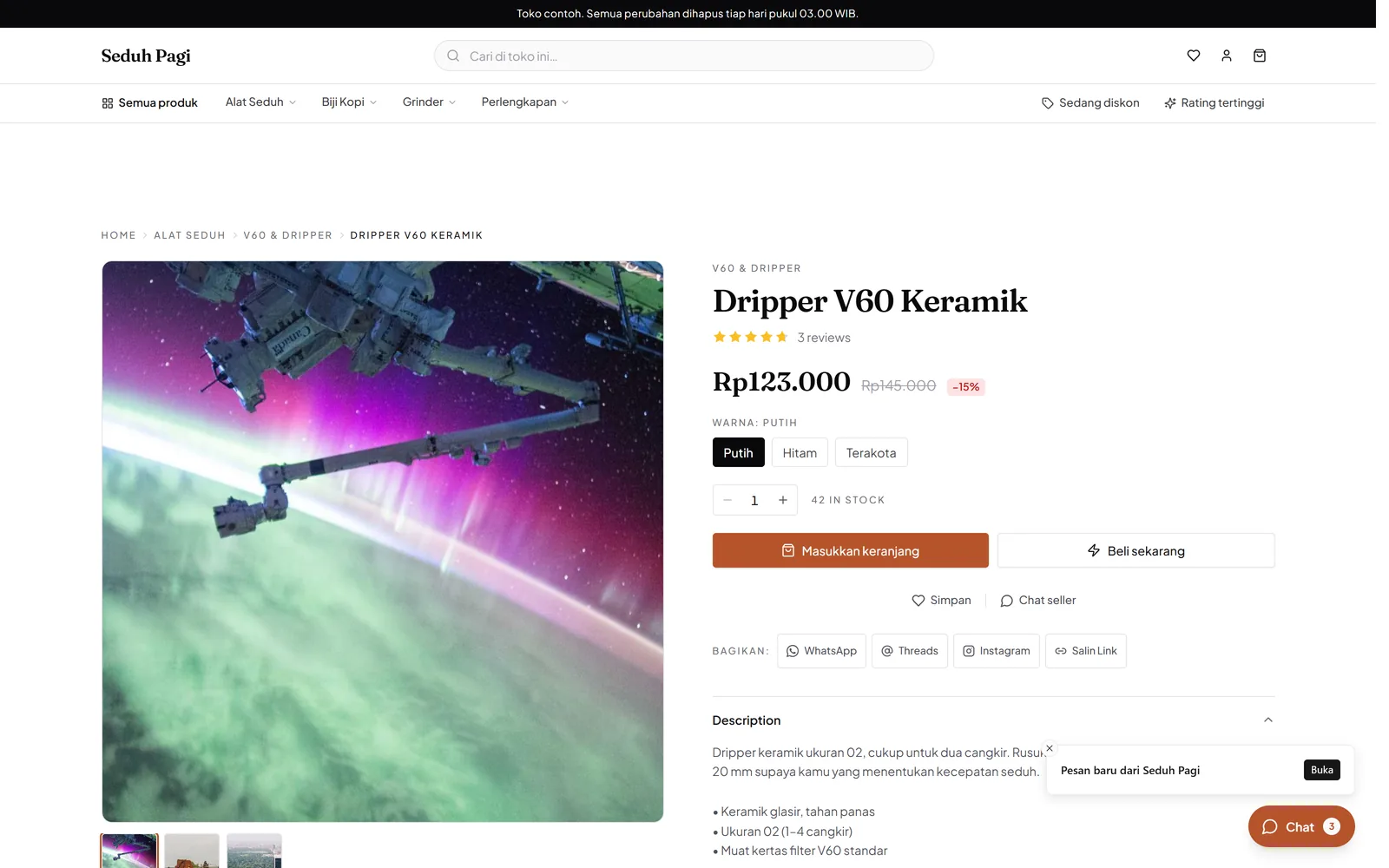
Prepare for home and business purchases.
Set quantity prices for several bags without creating another catalogue.
For purchases of several bags, set the minimum quantity for each price tier. Make the sale unit clear so business buyers know whether the entered quantity means bags or kilograms. This uses the same product rules without a separate wholesale account.
- Five wholesale price tiers
- Product purchase-quantity limits
- Applicable prices calculated in the cart
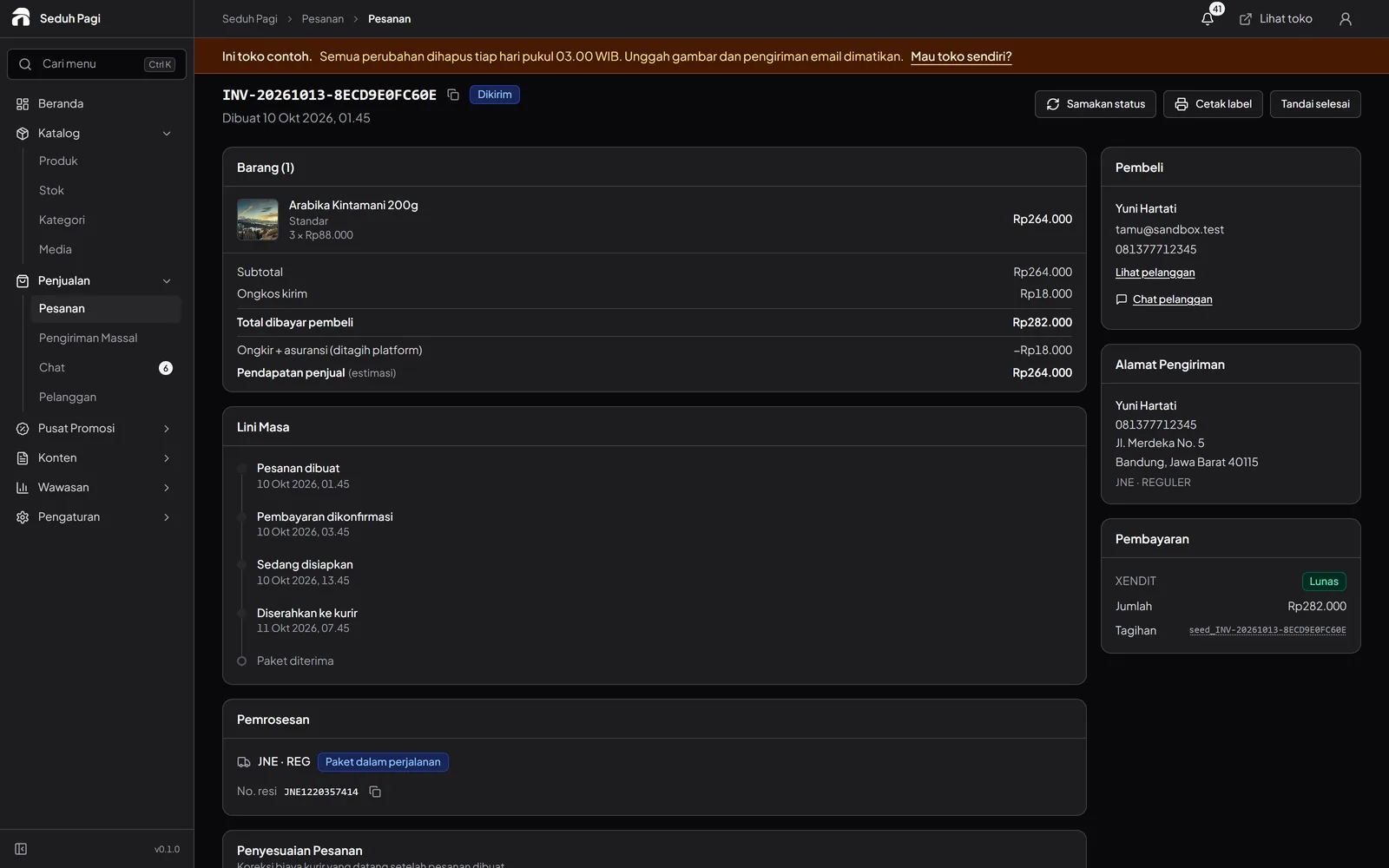
Find orders ready to pack.
Check grind options and quantities in order details before preparing parcels.
Match the coffee, bag weight, grind, and quantity before sealing the order. Where options share a bean supply, update variant allocations through your team's stock process. Print labels once the parcel and shipping service are ready.
- Payment status and variant details
- Batch shipping labels
- Order shipment history
Prepare a product sheet for each coffee.
Before publishing the catalogue, gather packaging photos, coffee names, origin information, bag sizes, and the grind choices you offer. Every combination sold needs a price and stock quantity.
Try an example order to see whether your team can read the choices clearly. Establish a bag-and-label check so prepared coffee matches the order, including when labels are printed in a batch.
- Match catalogue names to packaging
- Set SKUs by weight and grind
- Keep your own shared-bean stock records
- Check order details before printing labels
Questions about Coffee stores
More questionsCan buyers choose whole beans or ground coffee?
Yes. Create a grind option with choices you actually offer, then combine it with bag sizes. Buyers select a variant at purchase, and that choice appears in the order details.
Is one bean inventory shared automatically across grind options?
Stock is tracked per variant. If several variants use the same bean supply, your team needs to allocate and update those quantities. The system does not automatically deduct from a shared raw-material inventory across all variants.
Can I sell coffee from the next roasting run?
A product can be marked as a pre-order with a processing time. Explain preparation timing in the product information. This setting does not manage equipment, roasting schedules, or production batches.
Does this website also manage cafe table orders?
The workflow is for an online catalogue and checkout. This page focuses on coffee beans, ground coffee, and products ready to pack. Table orders, barista queues, and physical cafe checkout need a separate system.
How should I prepare coffee sold in several sizes?
Create one product per coffee or blend, then add bag sizes and grind choices as options. Enter prices, SKUs, stock, and shipping weights for each combination. Put origin and brewing information in the description; keep separate roast-date and batch records where needed.
See the store.
Try running it.
Explore the buyer's storefront and the seller's admin, then tell us what your store needs.